

DeepVest Help
Connect Zocks to DeepVest
Zocks transcribes and summarizes your client meetings. Once connected, DeepVest pulls those AI summaries into each client's record, so a meeting sits next to the portfolio, notes, and everything else you know about that client. This guide covers enabling the integration in Zocks, connecting it from DeepVest, and where the notes appear.
Part A · 2 steps · in Zocks
Enable the DeepVest integration in Zocks
Done once, by a Zocks account owner or administrator, before anyone connects from DeepVest.
Open the DeepVest app in Zocks
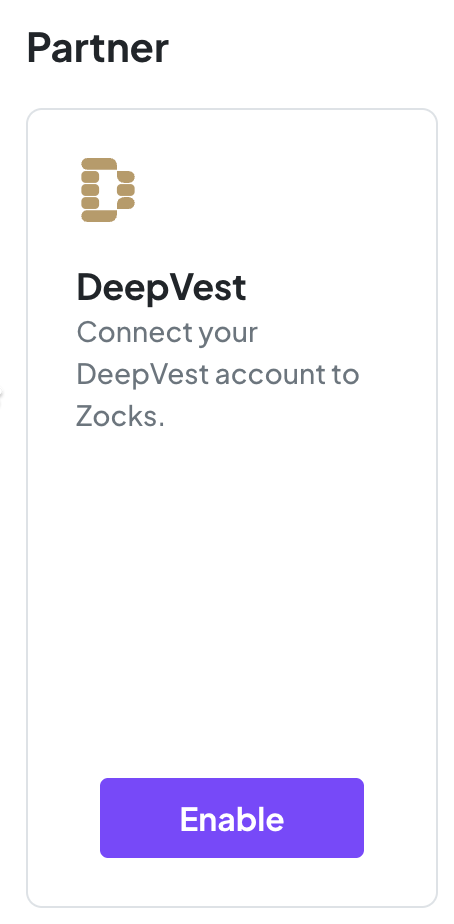
As a Zocks account owner or administrator, log into Zocks. Navigate to Integrations > Apps > Partner > DeepVest and select Enable.
Choose who can connect
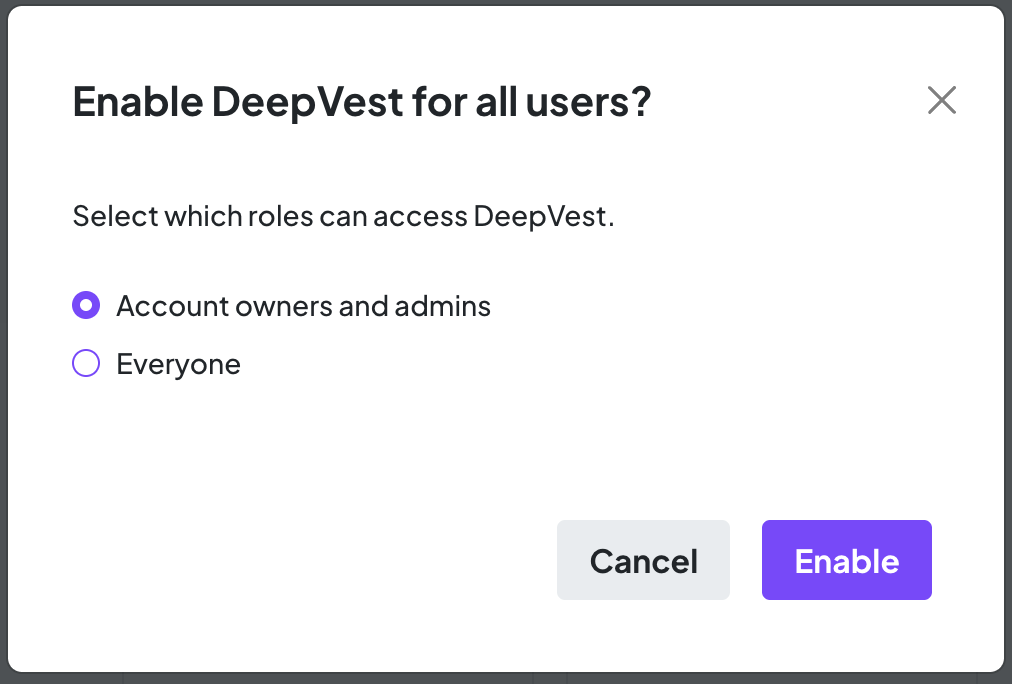
To continue, select which Zocks users should be able to connect their DeepVest accounts to Zocks and select Enable to finish. Review permissions as necessary.
Part B · 4 steps · in DeepVest
Connect Zocks in DeepVest
Done by the firm owner. The connection is firm-wide: once it is in place, every advisor's clients receive their meeting notes.
Open Integrations
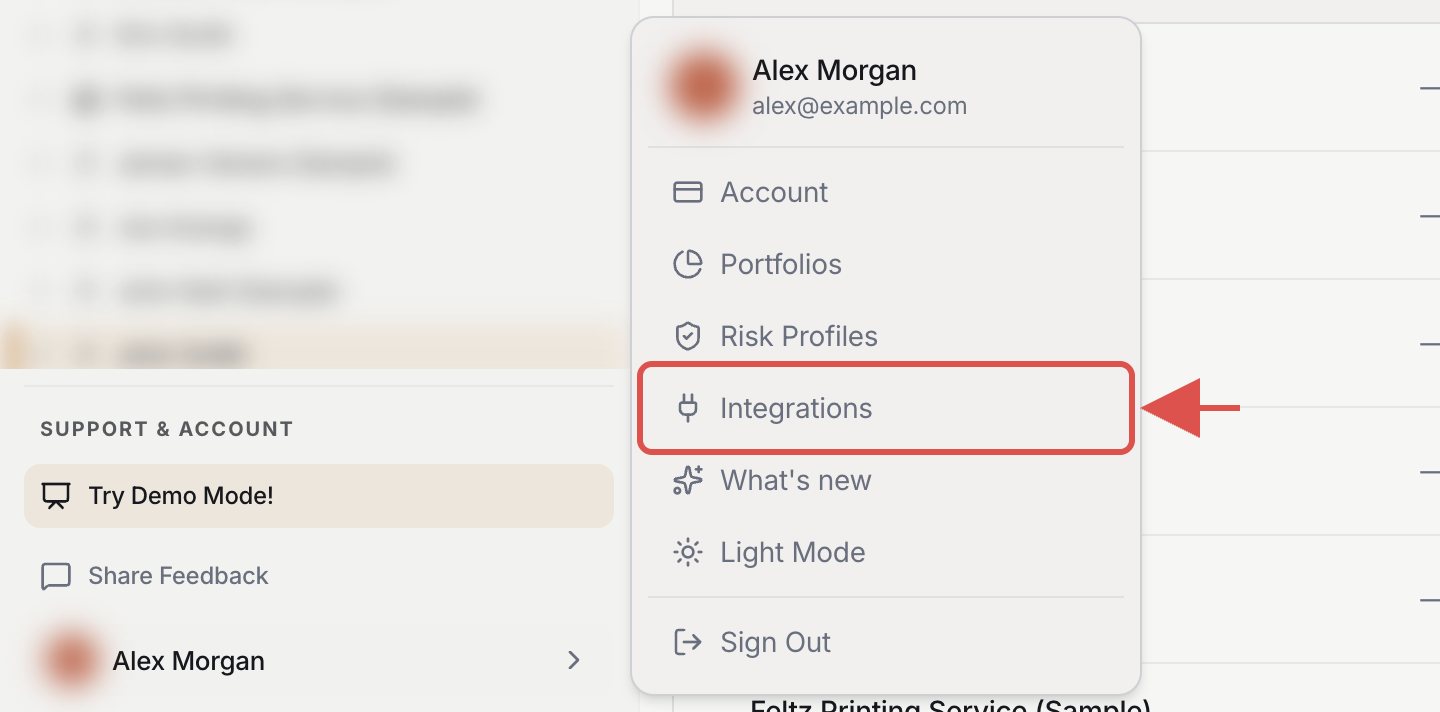
Click your name at the bottom-left of the sidebar and choose Integrations.
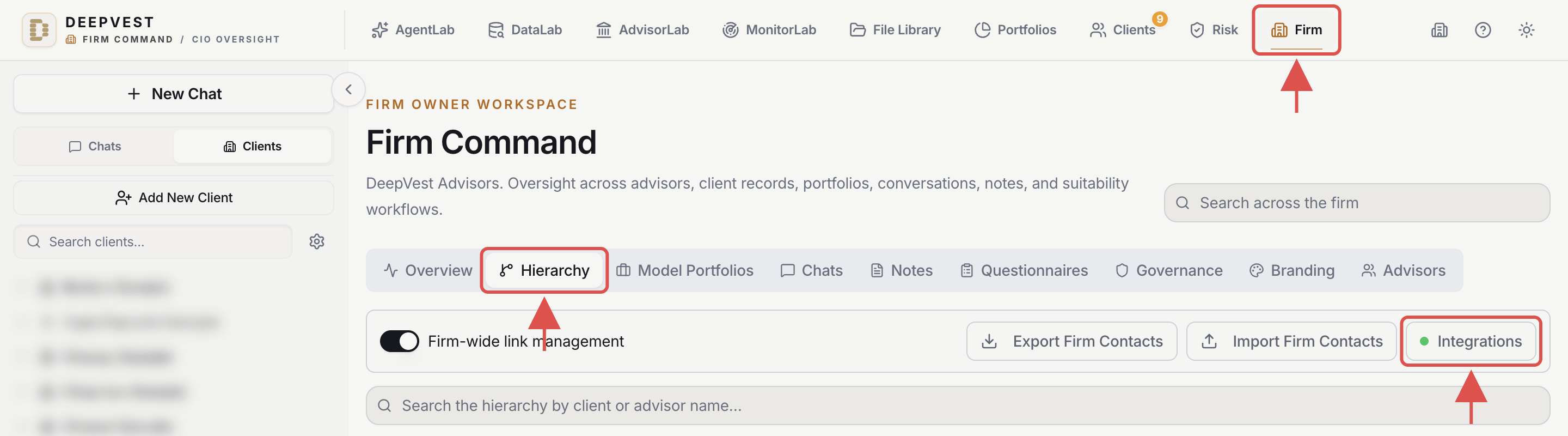
Firm owners can also get there from Firm Command: open Firm in the top navigation, select the Hierarchy tab, and click Integrations on the right.
Select Zocks and connect
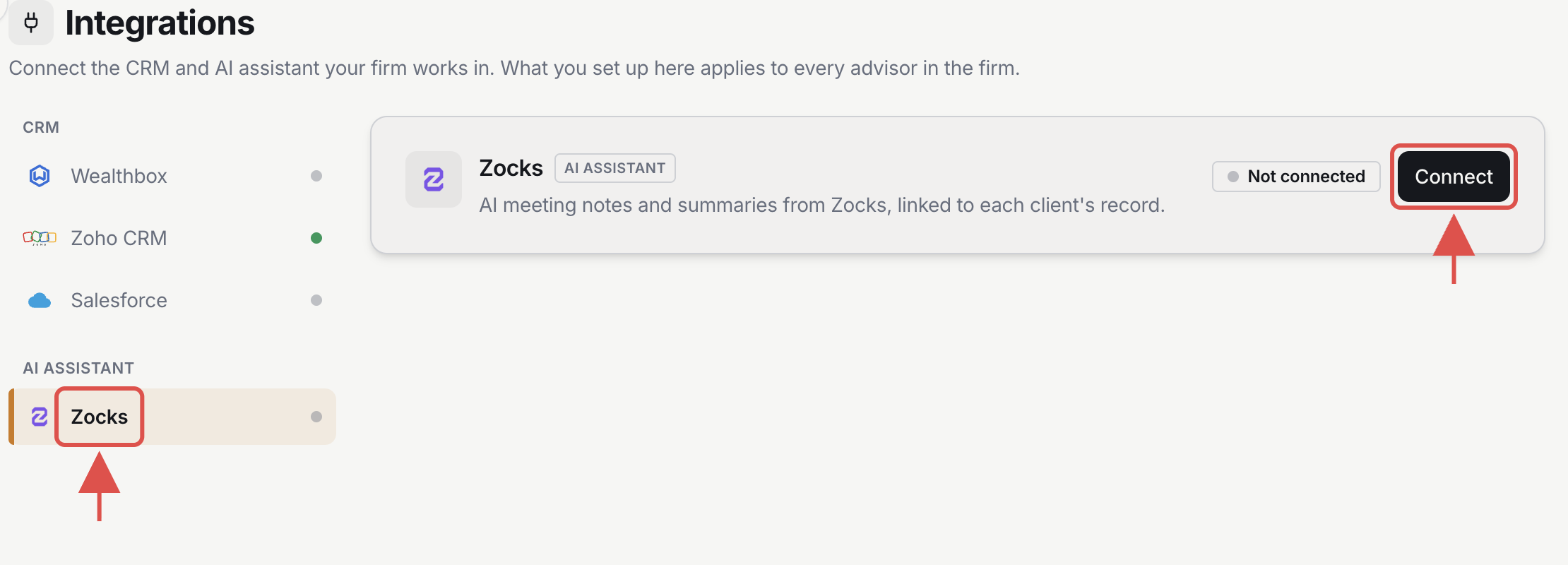
Under AI Assistant, select Zocks, then click Connect at the top right of the panel.
Authorize access on Zocks
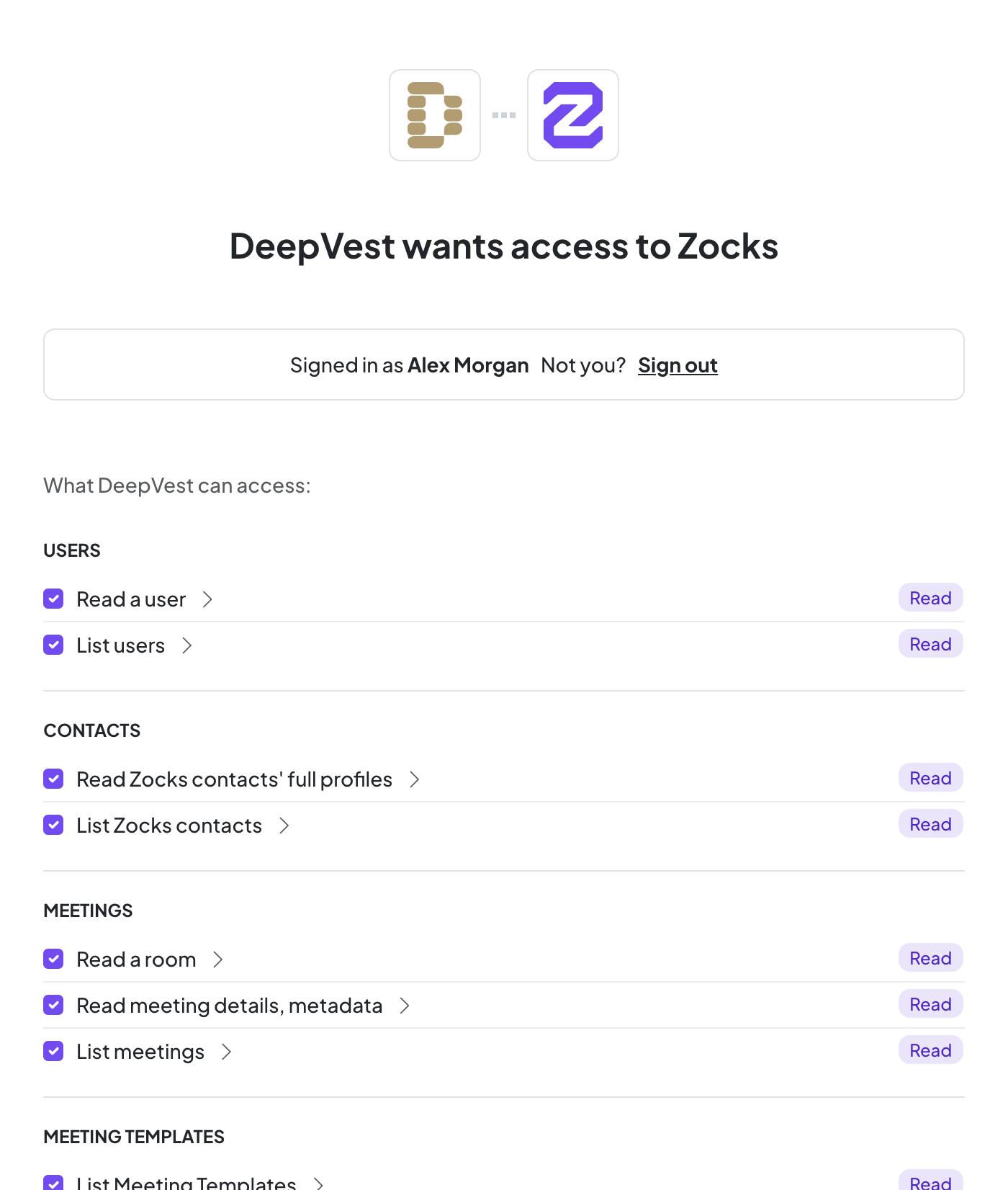
You're taken to Zocks to approve the connection. Confirm you're signed in to the right Zocks account, review the read-only permissions (users, contacts, meetings, meeting templates), and approve. Zocks returns you to the Integrations page.
Confirm the connection and sync
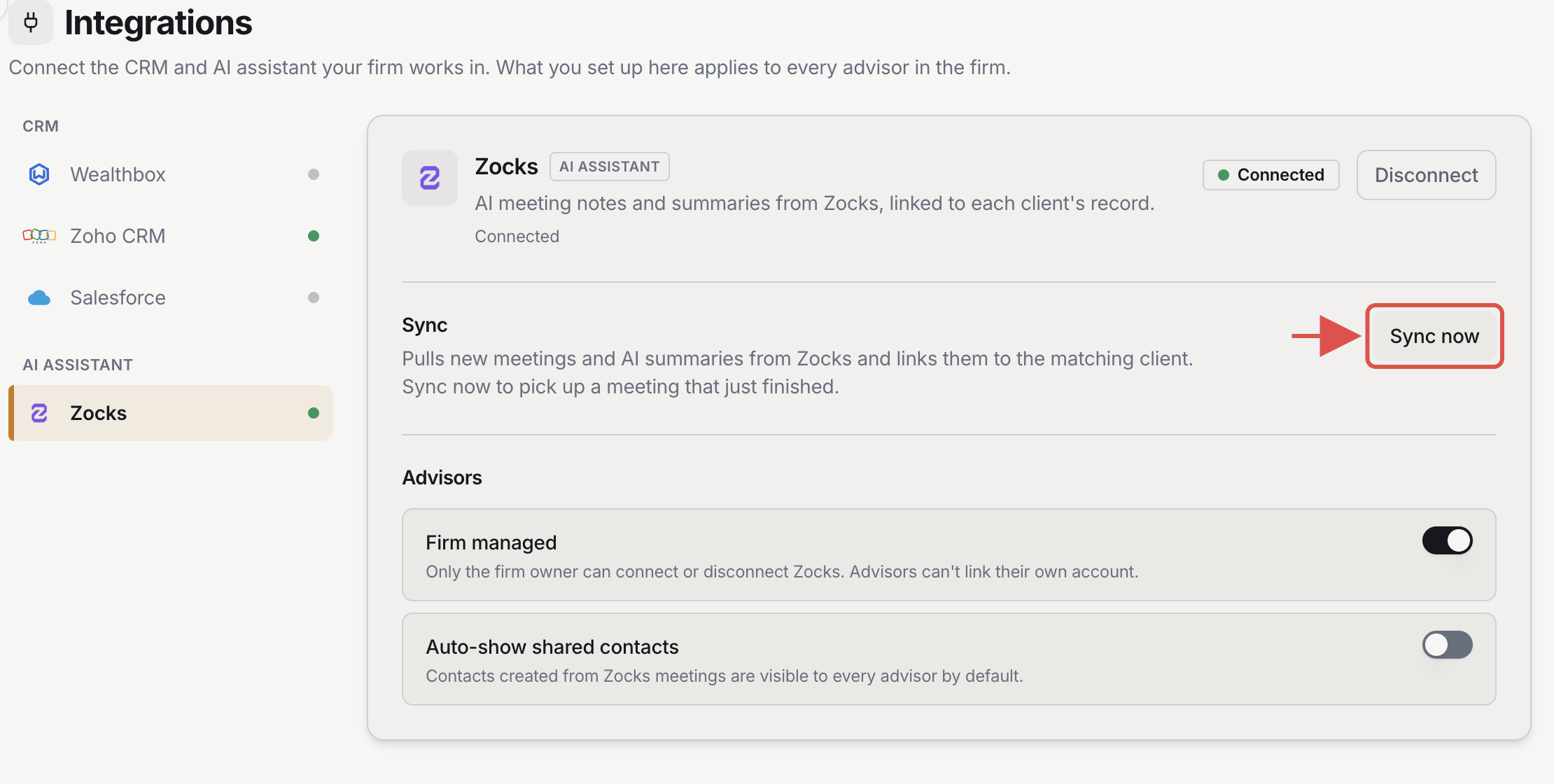
Zocks now shows Connected. Click Sync now to pull meeting notes immediately; syncs also run automatically afterward.
Part C · 3 steps · in DeepVest
Make sure the client exists in DeepVest
Meeting notes attach to a client by email: the participant email on the Zocks meeting must match the client's email in DeepVest. If the client came in from your CRM, you're done. Otherwise add them by hand.
Open client settings
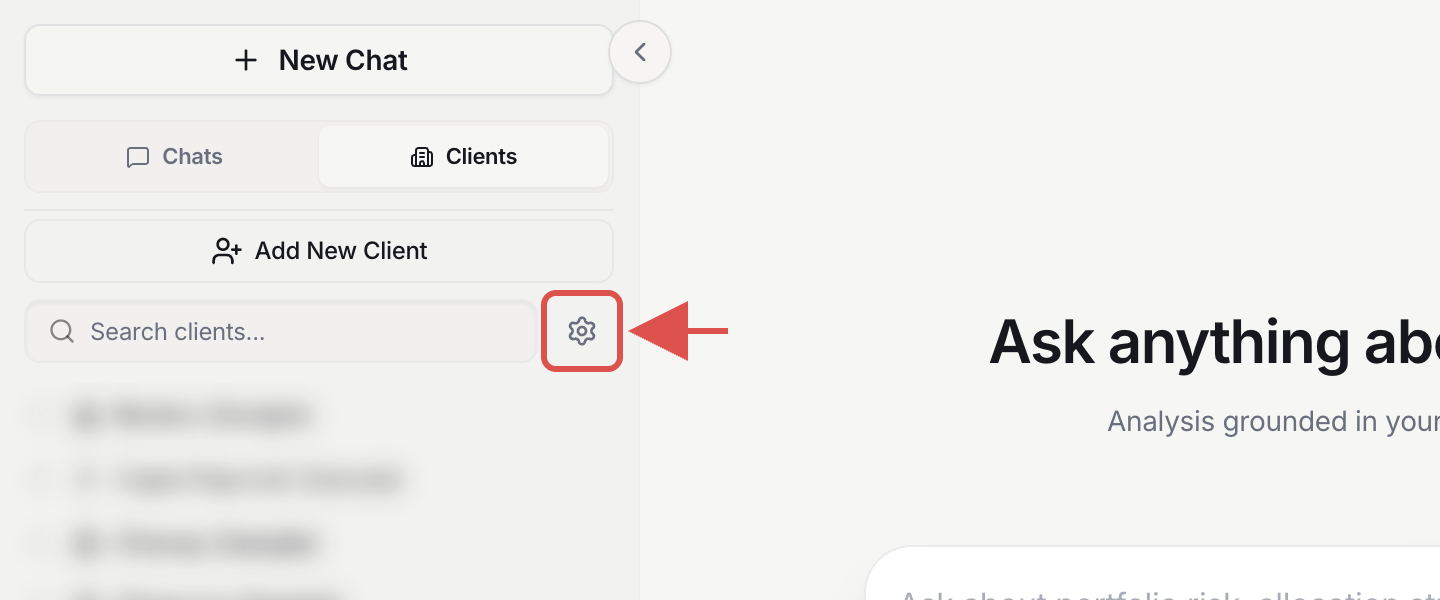
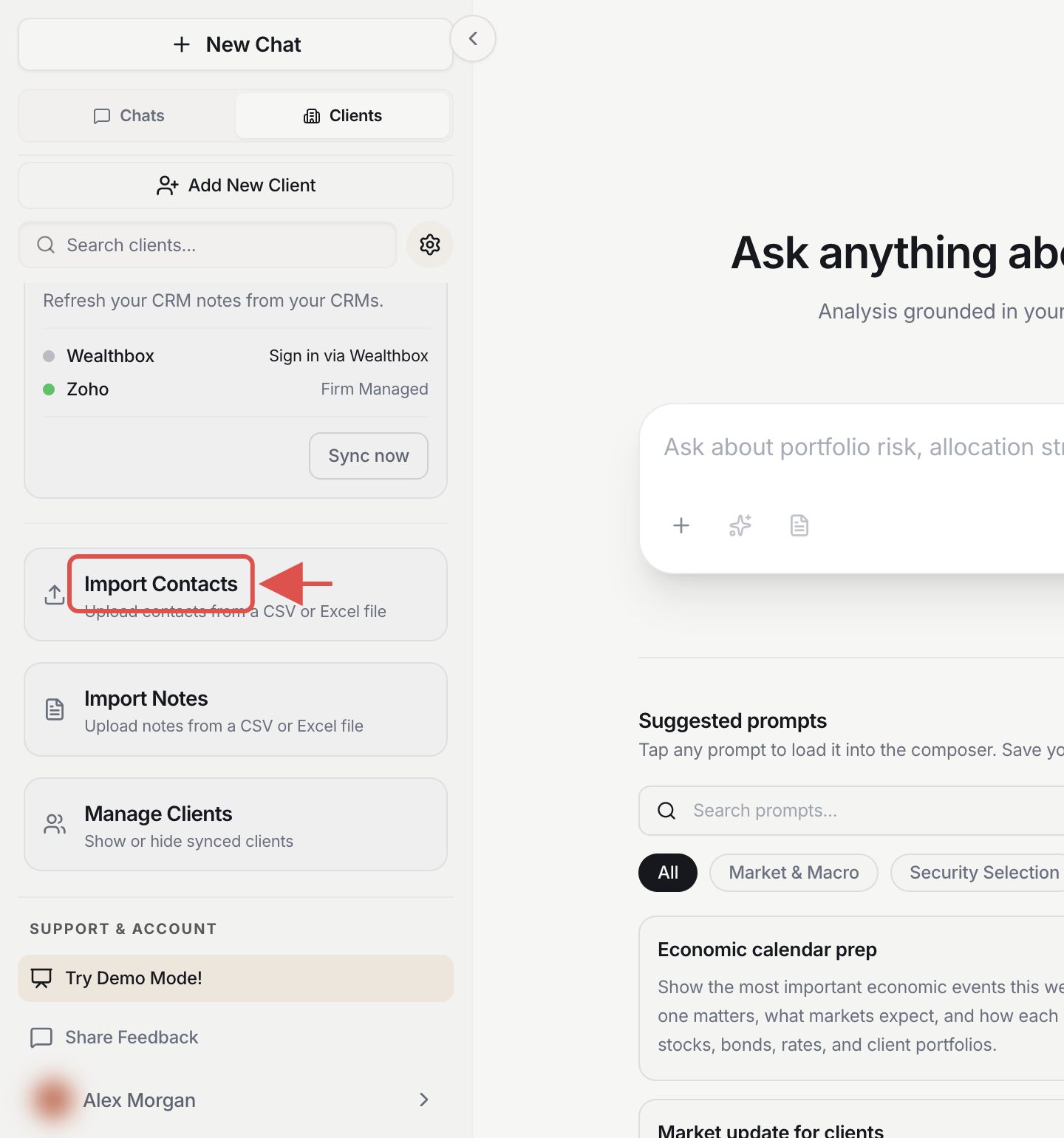
Select the Clients tab in the left sidebar, then click the gear icon next to Search clients.
Choose Import Contacts
The Sync & Import panel opens. Scroll down and click Import Contacts.
Add the contact's details
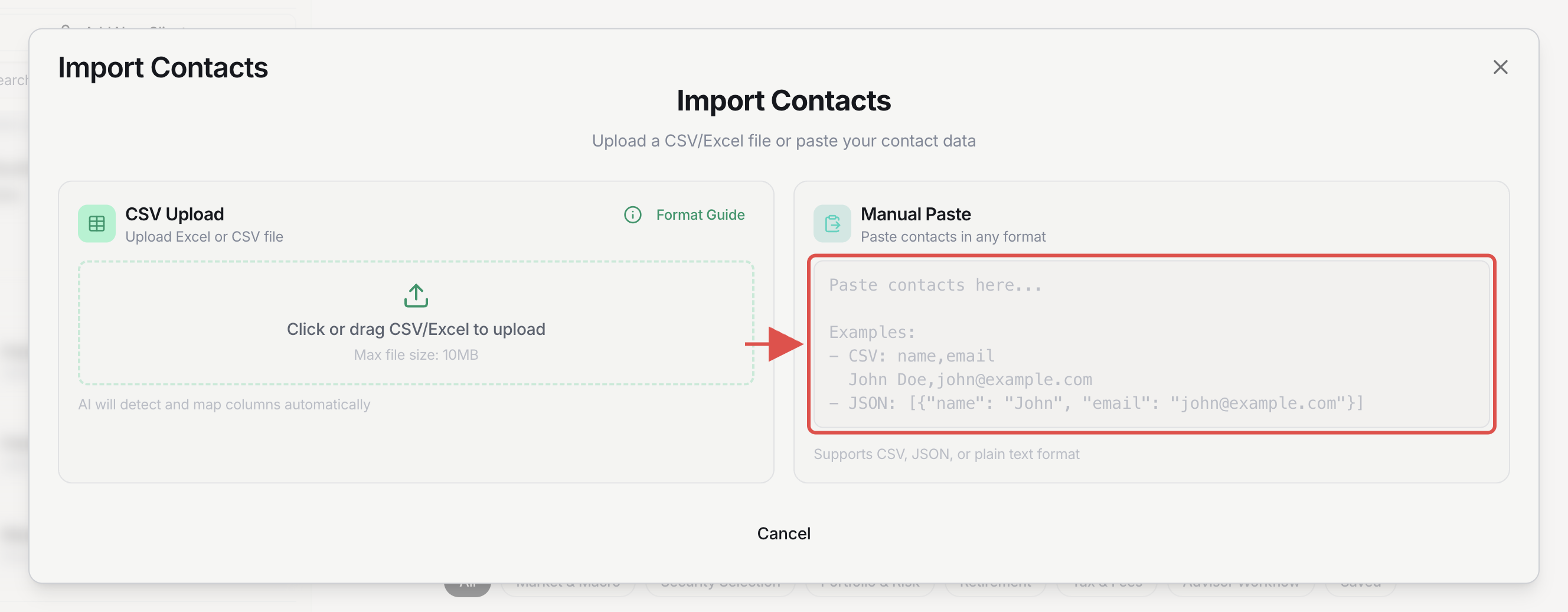
Pick either method in the Import Contacts dialog:
- CSV Upload: click or drag in a CSV or Excel file (up to 10MB). Columns are detected and mapped automatically.
- Manual Paste: paste contacts as CSV, JSON, or plain text.
name,email,type
John Smith, [email protected], Person
Review the parsed contact, confirm the email, and click Import.
Result
Where the notes appear
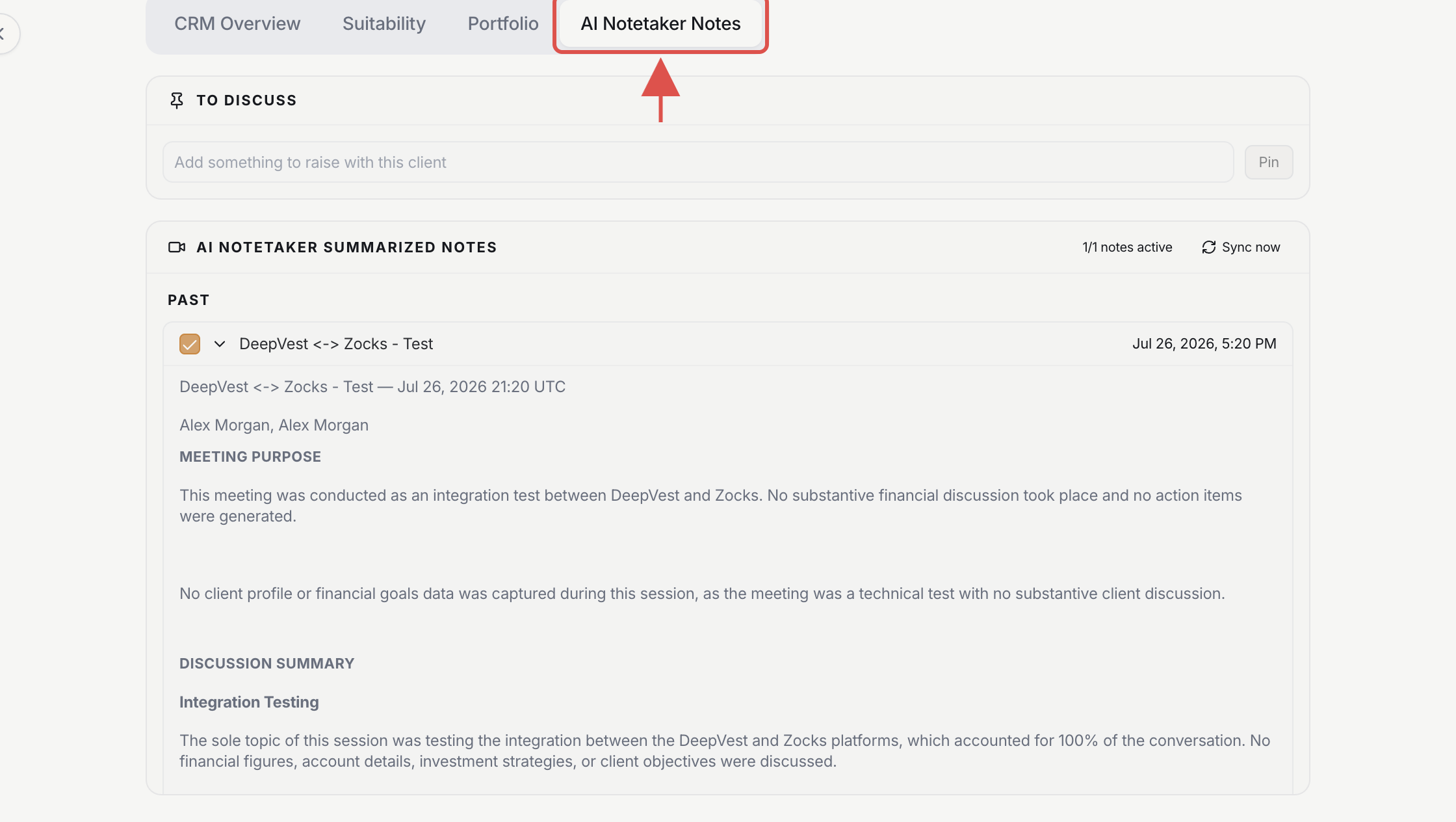
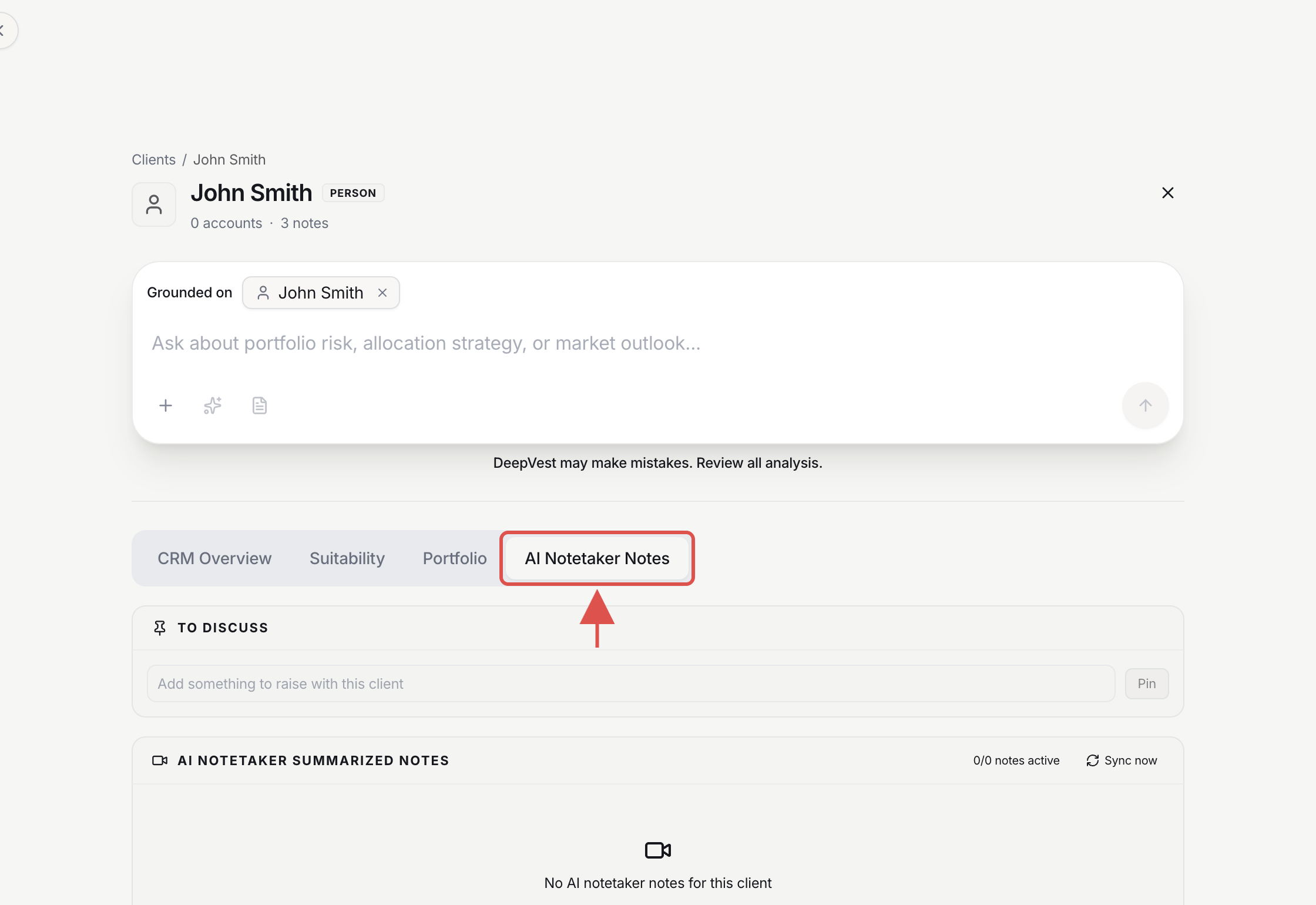
Open the client's profile and select the AI Notetaker Notes tab. Zocks meetings whose participant email matches the client's email appear as AI-summarized notes, with a Sync now control to refresh on demand.
Troubleshooting
If notes don't appear
Three checks cover almost every case.
- Check the email first.The client's email in DeepVest must exactly match the participant email on the Zocks meeting. A mismatch (a typo, an alternate address) is the most common reason notes don't link.
- Trigger a sync. Click Sync nowon the Integrations page (step B4) or on the client's AI Notetaker Notes tab, then give it a moment to pull.
- Confirm the Zocks meeting has an AI summary. Only meetings the Zocks AI notetaker summarized flow in.
- Connect fails with "not available"? The integration has not been enabled in Zocks yet. Go back to Part A.